Integrate with QNAP NAS
Support level: Community
What is QNAP NAS?
QNAP designs and delivers network-attached storage, video surveillance, and networking solutions.
Preparation
The following placeholders are used in this guide:
ldap.baseDNis the base DN configured in the authentik LDAP provider.ldap.domainis the FQDN that resolves to the authentik LDAP outpost. This is commonly derived from the base DN. For example, ifldap.baseDNisdc=ldap,dc=goauthentik,dc=io, thenldap.domainmight beldap.goauthentik.io.qnap.serviceAccountis the authentik service account that QNAP NAS uses to bind to LDAP.qnap.serviceAccountPasswordis the app password generated for the service account by authentik.
Connecting a QNAP NAS to authentik LDAP requires a two-step service configuration. First, use the QNAP web interface to store the encrypted bind password. Then, edit the generated LDAP configuration over SSH so QNAP can search authentik's LDAP structure.
This documentation lists only the settings that you need to change from their default values. Be aware that any changes other than those explicitly mentioned in this guide could cause issues accessing your application.
The QNAP LDAP client configuration has issues with passwords that are longer than 66 characters. Use a service account app password that is 66 characters or shorter.
authentik configuration
To support the integration of QNAP NAS with authentik, you need an LDAP application and provider, a service account with LDAP search permissions, and an LDAP outpost.
Create the LDAP resources
- Follow the LDAP provider setup to create or reuse the LDAP application and provider, create a service account, assign the LDAP search permission, and create an LDAP outpost.
- Use
qnap.serviceAccountas the service account username and copy its generated app password asqnap.serviceAccountPassword. - Note the provider's Base DN value as
ldap.baseDN. - Open the LDAP application's Policy / Group / User Bindings tab and bind
qnap.serviceAccountand any users or groups that should be able to authenticate to QNAP NAS. - Ensure that the LDAP application is selected on the outpost and deploy the outpost where the QNAP NAS can reach it as
ldap.domain.
QNAP NAS configuration
Configure LDAP in the web interface
- Log in to the QNAP web interface as an administrator.
- Navigate to Control Panel > Privilege > Domain Security.
- Select LDAP authentication.
- Configure the LDAP settings for your environment, using
ldap.domain,ldap.baseDN,qnap.serviceAccount, andqnap.serviceAccountPassword. - Click Apply.
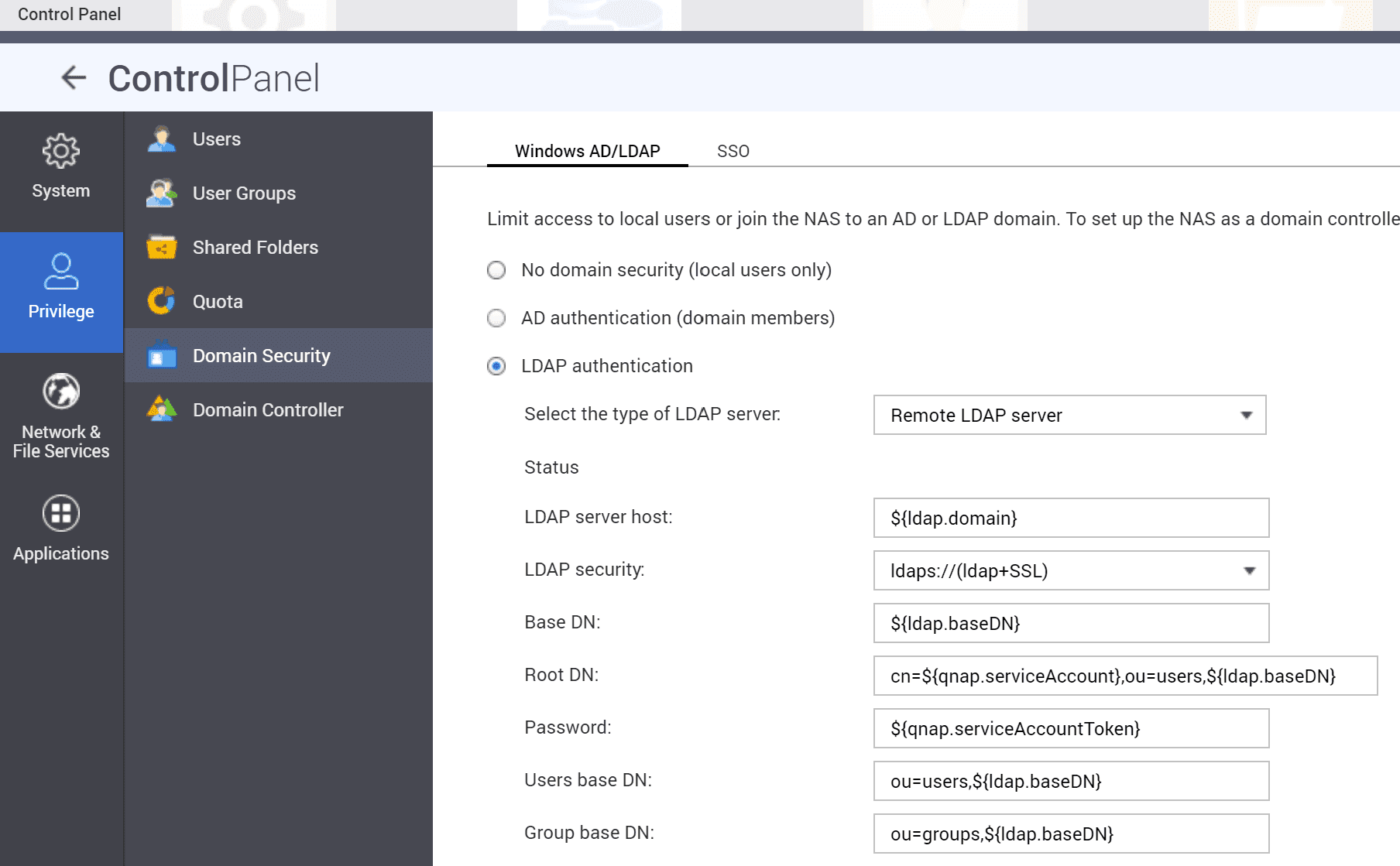
Each time you click Apply in the QNAP LDAP web interface, QNAP overwrites /etc/config/nss_ldap.conf with generated values. Repeat the SSH changes below after saving LDAP settings in the web interface.
The web interface step is required because QNAP stores the encrypted bind password in /etc/config/nss_ldap.ensecret.
Update the LDAP configuration over SSH
QNAP searches users and groups with fixed filters for the posixAccount and posixGroup object classes. It also uses a single-level search scope unless the generated configuration is changed. The configuration below maps those object classes to authentik objects and keeps the search bases explicit.
Connect to the QNAP NAS over SSH and stop the LDAP service:
/sbin/setcfg LDAP Enable FALSE
/etc/init.d/ldap.sh stop
Edit /etc/config/nss_ldap.conf:
host                        ${ldap.domain}
base                        ${ldap.baseDN}
uri                         ldaps://${ldap.domain}/
ssl                         on
rootbinddn                  cn=${qnap.serviceAccount},ou=users,${ldap.baseDN}
nss_schema                  rfc2307bis

nss_map_objectclass         posixAccount    user
nss_map_objectclass         shadowAccount   user
nss_map_objectclass         posixGroup      group

nss_map_attribute           uid             cn
nss_map_attribute           gecos           displayName
nss_map_attribute           uniqueMember    member

nss_base_passwd             ou=users,${ldap.baseDN}?one
nss_base_shadow             ou=users,${ldap.baseDN}?one
nss_base_group              ou=groups,${ldap.baseDN}?one

tls_checkpeer               no
referrals                   no
bind_policy                 soft
timelimit                   120
tls_ciphers                 EECDH+CHACHA20:EECDH+CHACHA20-draft:EECDH+AES128:RSA+AES128:EECDH+AES256:RSA+AES256:!MD5
nss_initgroups_ignoreusers  admin,akadmin
The configuration remaps QNAP's expected posixAccount and posixGroup object classes to authentik's user and group object classes. It also maps uid to cn so QNAP displays authentik usernames instead of internal IDs.
Start the LDAP service:
/sbin/setcfg LDAP Enable TRUE
/etc/init.d/ldap.sh start
Configuration verification
To confirm that authentik is properly configured with QNAP NAS, connect to the NAS over SSH and list users and groups:
getent passwd
getent group
The output should include local QNAP entries and entries from authentik.